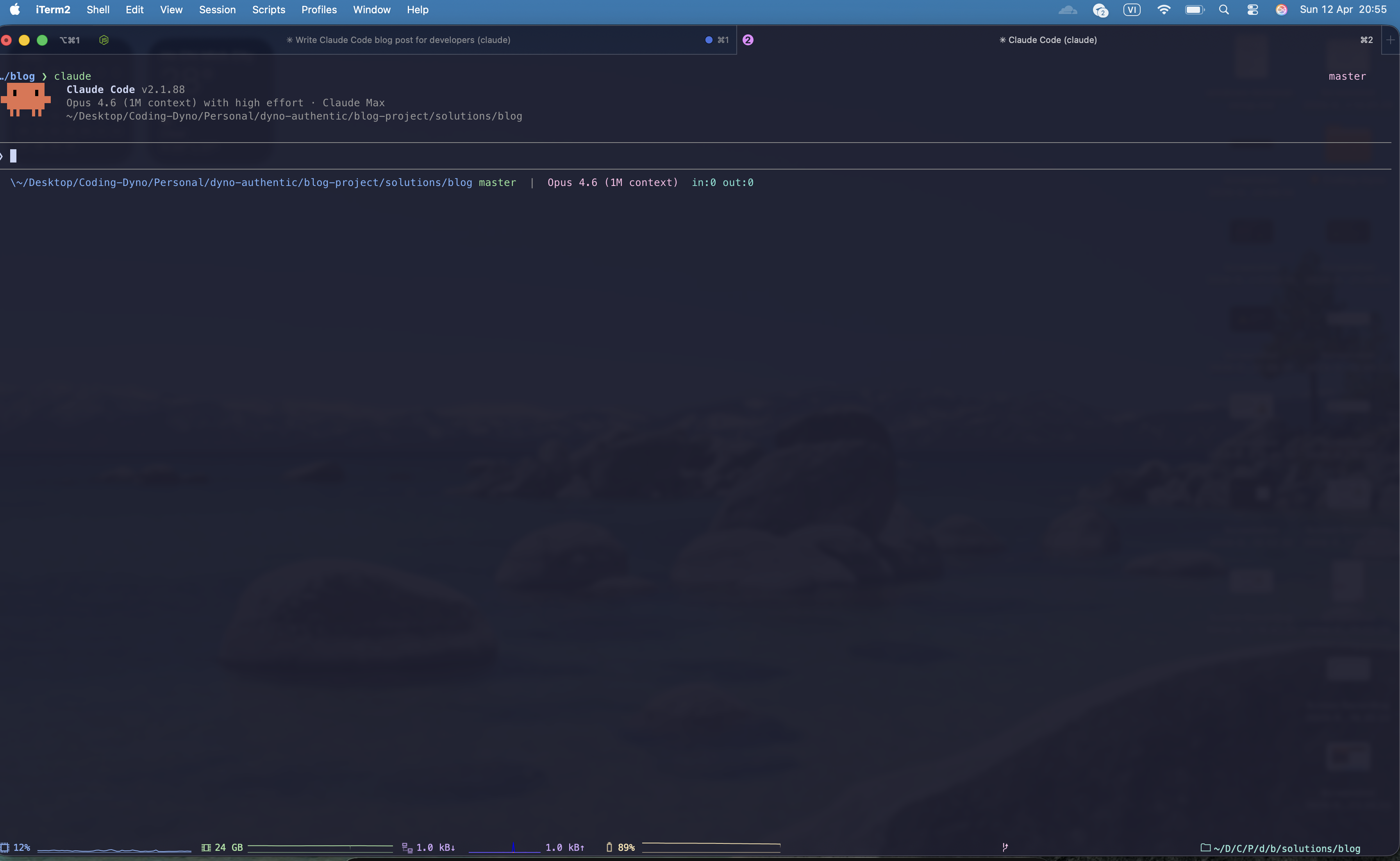
Most developers use Claude Code at a basic level — type a prompt and wait for results. But Claude Code is a full agentic system — with memory, planning, hooks, plugins, and sub-agents. This post will deep dive into each feature you might not know about.
/init — Onboarding Claude Code Into Your Project
The first command you should run when opening Claude Code in any project:
claude
> /init/init will automatically scan your entire codebase and create a CLAUDE.md file — this is the brain of Claude Code in your project. This file contains:
- Commands: Build, test, lint, dev server commands
- Architecture: Architecture description, framework, routing patterns
- Conventions: Naming conventions, folder structure, coding style
# CLAUDE.md

## Commands
- `pnpm dev` — start dev server (port 3000)
- `pnpm build` — production build
- `pnpm test:unit` — run vitest
- `pnpm lint` — eslint + prettier check

## Architecture
Next.js 15 App Router, TypeScript strict mode, Tailwind CSS v4.
State management: Zustand. API layer: tRPC.

## Conventions
- Components: PascalCase, co-located with tests
- Hooks: prefix `use`, placed in `hooks/`
- No default exports (except pages)
Important: CLAUDE.md is not a one-time setup. Keep it updated as your project evolves. You can place CLAUDE.md at multiple levels:
- Root
CLAUDE.md: Shared conventions for the entire project packages/ui/CLAUDE.md: Specific conventions for the UI package~/.claude/CLAUDE.md: Personal conventions, applied to all projects
Claude Code reads all CLAUDE.md files from root to the current directory and merges them into a complete context.
Plan Mode — Brainstorming Before Coding
Instead of letting Claude Code jump straight into coding, you can enable Plan Mode with the Shift + Tab shortcut to cycle through modes:
default → acceptEdits → plan → default → ...In Plan Mode, Claude Code will not modify any files. It only reads code, analyzes, and produces a plan. You can also prefix a prompt with /plan for a single question:
> /plan Design a realtime notification system for the appClaude Code will:
- Analyze the current codebase
- Propose architecture (WebSocket vs SSE vs polling)
- List files to create/modify
- Evaluate trade-offs between approaches
- Create a step-by-step implementation plan
[Plan Mode ON — Shift+Tab to switch mode]

> I want to add authentication to this Next.js app.
> Currently there's no auth at all.

Claude Code will analyze:
- Recommend NextAuth.js vs Clerk vs custom JWT
- Evaluate based on current stack (already has Prisma → NextAuth fits)
- List: create [...nextauth] route, middleware, session provider
- Estimate: 5 files to create, 3 files to modify
When you're satisfied with the plan, press Shift + Tab to switch back to default mode and say:
> Execute the plan we just discussedClaude Code will execute step by step according to the plan.
Tip: Use Plan Mode for every complex task. It helps you and Claude Code align before writing code, avoiding having to undo a bunch of changes.
Hooks — Automating Your Workflow
Hooks are commands that automatically run when Claude Code performs specific events. Configure them in .claude/settings.json:
{
  "hooks": {
    "PostToolUse": [
      {
        "matcher": "Write|Edit",
        "hooks": [
          {
            "type": "command",
            "command": "pnpm prettier --write $CLAUDE_PROJECT_DIR"
          }
        ]
      }
    ],
    "Notification": [
      {
        "matcher": "",
        "hooks": [
          {
            "type": "command",
            "command": "osascript -e 'display notification \"Claude Code done!\" with title \"Claude Code\"'"
          }
        ]
      }
    ]
  }
}
Hook Structure
{
  "matcher": "Edit|Write",
  "hooks": [
    {
      "type": "command",
      "command": "your-script.sh",
      "timeout": 600
    }
  ]
}matcher: Filter when the hook runs — can be a tool name (Bash,Edit|Write), regex (^Notebook), or empty""to match everythinghooks: Array of actions. Each action has atype:command,http,prompt, oragenttimeout: Execution time limit (seconds)
Key Hook Events
Claude Code supports 27 hook events. Here are the most commonly used:
| Event | When it fires | Can block? |
|-------|--------------|------------|
| PreToolUse | Before Claude uses a tool | Yes |
| PostToolUse | After a tool completes | No |
| UserPromptSubmit | User sends prompt, before processing | Yes |
| Notification | When Claude needs to notify | No |
| Stop | When Claude finishes a task | Yes |
| SessionStart | Session begins | No |
| SubagentStart | Sub-agent is spawned | No |
| TaskCompleted | Task is completed | Yes |
Environment Variables Available in Hooks
| Variable | Description |
|----------|-------------|
| CLAUDE_PROJECT_DIR | Project root directory |
| CLAUDE_CODE_REMOTE | "true" if running in web/remote |
Important note: Hooks do not have a variable for the specific file being edited. You only have CLAUDE_PROJECT_DIR to reference the project root.
Example: Block Claude from running dangerous commands
{
  "hooks": {
    "PreToolUse": [
      {
        "matcher": "Bash",
        "hooks": [
          {
            "type": "command",
            "command": "echo 'Review Bash command before running'"
          }
        ]
      }
    ]
  }
}
Hook Action Types
Besides command, hooks also support:
http: Call a webhook when an event occurs (send Slack notification, log to server...)prompt: Automatically send an additional prompt for Claude Code to processagent: Spawn a sub-agent to handle a task in parallel
{
  "type": "http",
  "url": "https://hooks.slack.com/services/xxx/yyy/zzz",
  "headers": { "Content-Type": "application/json" }
}
MCP Servers — Extending Capabilities With Plugins
Model Context Protocol (MCP) is how Claude Code connects to external services. Each MCP server provides additional tools that Claude Code can use — like plugins.
Configuring MCP Servers
Add to .claude/settings.json or create a .mcp.json file at the project root:
{
  "mcpServers": {
    "github": {
      "command": "npx",
      "args": ["-y", "@modelcontextprotocol/server-github"],
      "env": {
        "GITHUB_TOKEN": "ghp_xxxxxxxxxxxx"
      }
    },
    "postgres": {
      "command": "npx",
      "args": ["-y", "@modelcontextprotocol/server-postgres"],
      "env": {
        "DATABASE_URL": "postgresql://user:pass@localhost:5432/mydb"
      }
    }
  }
}
Two Transport Types
Stdio — run a local process:
{
  "command": "npx",
  "args": ["-y", "@modelcontextprotocol/server-github"],
  "env": { "GITHUB_TOKEN": "${GITHUB_TOKEN}" }
}
HTTP/SSE — connect to a remote server:
{
  "type": "http",
  "url": "https://api.example.com/mcp",
  "headers": { "Authorization": "Bearer ${API_TOKEN}" }
}
Useful MCP Servers for Developers
GitHub MCP (@modelcontextprotocol/server-github):
> List all open issues with label "bug" in this repo
> Review comments on PR #42
PostgreSQL MCP (@modelcontextprotocol/server-postgres):
> Show the schema of the users table
> How many users signed up in the last 7 days?
Filesystem MCP (@modelcontextprotocol/server-filesystem):
> Watch for changes in the src/ directoryTools from MCP servers follow the naming pattern mcp__<server>__<tool>. Example: mcp__github__list_issues. You can restrict allowed tools via allowedTools with wildcards: mcp__github__*.
Sub-Agents — Claude Code Delegates Work
When facing complex tasks, Claude Code spawns sub-agents to process work in parallel.
How It Works
When you request:
> Refactor the entire API layer from REST to tRPCClaude Code will:
- Main agent: Plan and divide tasks
- Sub-agent Explore: Scan all existing API routes
- Sub-agent Explore: Find all API call sites in the frontend
- Sub-agent Plan: Design the tRPC router structure
- Main agent synthesizes results and executes
You'll see in the terminal:
⠋ Agent (Explore): Scanning API routes...
⠋ Agent (Explore): Finding API call sites in components...
⠋ Agent (Plan): Designing tRPC router structure...
Sub-Agent Types
| Type | Purpose | Can edit files? | |------|---------|----------------| | Explore | Search, read code, analyze codebase | No | | Plan | Create plans, design architecture | No | | General-purpose | Execute complex, multi-step tasks | Yes |
Sub-agents are used automatically when Claude Code determines a task needs research or has independent work that can run in parallel. You don't need to trigger them manually.
Custom Skills — Create Your Own Workflows
This is the most powerful feature that few people know about. You can create custom slash commands (called Skills) for yourself.
Create a Project-level Skill
Create file .claude/commands/review.md:
---
name: review
description: Review code on the current branch with security and performance checklist
---

Review code on the current branch. Focus on:
1. Security vulnerabilities (SQL injection, XSS, CSRF)
2. Performance issues (N+1 queries, unnecessary re-renders)
3. TypeScript type safety (any types, missing null checks)
4. Accessibility (missing aria labels, keyboard navigation)

Output format: markdown checklist with severity level.
Use in Claude Code:
> /reviewNo need for project: or user: prefix — just type the skill name.
Create a Personal Skill (applies to all projects)
Create file ~/.claude/commands/commit-msg.md:
---
name: commit-msg
description: Create a commit with conventional commit message
---

Create a commit for current changes:
1. Run git diff to see changes
2. Write commit message in English
3. Format: <type>(<scope>): <description>
4. Types: feat, fix, refactor, style, docs, test, chore
5. Create commit
Skills With Arguments
File .claude/commands/component.md:
---
name: component
description: Create a new React component with TypeScript and Tailwind
---

Create a new React component with name: $ARGUMENTS

Requirements:
- TypeScript with proper interface for props
- Tailwind CSS for styling
- Include a .test.tsx test file
- Export from the components directory index.ts
- Follow conventions in CLAUDE.md
Usage:
> /component UserAvatar$ARGUMENTS will be replaced with UserAvatar. You can also use $0, $1, $2 to access individual arguments:
> /migrate-component SearchBar React Vue→ $0 = SearchBar, $1 = React, $2 = Vue
Advanced Skills (Using Directories)
Instead of a single .md file, you can create an entire directory .claude/skills/<skill-name>/SKILL.md with additional templates, examples, and scripts:
.claude/skills/api-endpoint/
├── SKILL.md            # Main prompt
├── template.ts         # Code template
└── example.test.ts     # Example test
Useful Frontmatter Options
---
name: my-skill
description: Describe when to use this skill
disable-model-invocation: true    # Only user can invoke (Claude won't auto-trigger)
allowed-tools: ["Edit", "Write"]  # Pre-approve tools, no permission prompts
context: fork                     # Run in a separate sub-agent
---
Memory System — Claude Code Remembers You
Claude Code has an auto memory system — it automatically learns and saves information across sessions.
How It Works
When you say:
> Remember that this project uses date-fns instead of moment.jsClaude Code saves to ~/.claude/projects/<project-hash>/memory/ as markdown files. Each new session, it automatically reads memory and applies it.
Memory Types
- User: Information about you — role, experience, preferences
- Feedback: How you want Claude to work — "don't add unnecessary comments", "use arrow functions"
- Project: Project context — tech decisions, deadlines, team conventions
- Reference: Links to wikis, dashboards, Jira...
Practical Examples
> Remember: our team uses conventional commits,
> every PR must have tests, and no any types in TypeScript

> Remember: API docs are at https://internal-wiki.company.com/api
From now on, every time you ask for a commit → conventional commits. Every time you create a PR → tests included automatically. No need to repeat yourself.
Managing Memory
Use /memory to view and edit. Or disable auto memory in settings.json:
{
  "autoMemoryEnabled": false
}
Print Mode — Running Claude Code in Scripts & CI/CD
Claude Code doesn't only run interactively. You can use the -p flag (print mode) in scripts:
# Run a single command
claude -p "Find all TODO comments in the codebase"

# Pipe input
cat error.log | claude -p "Analyze this log and find the root cause"

# Structured JSON output
claude -p "List all API endpoints" --output-format json

# Stream JSON in realtime
claude -p "Refactor utils.ts" --output-format stream-json
Output Formats
| Format | Description |
|--------|-------------|
| text | Plain text (default) |
| json | Structured JSON with result, session ID, metadata |
| stream-json | Newline-delimited JSON, realtime streaming |
Example: Auto-review Every PR in GitHub Actions
# .github/workflows/claude-review.yml
name: Claude Code Review
on: [pull_request]

jobs:
  review:
    runs-on: ubuntu-latest
    steps:
      - uses: actions/checkout@v4
      - name: Install Claude Code
        run: npm install -g @anthropic-ai/claude-code
      - name: Review PR
        run: |
          claude -p "Review all changes in this PR.
          Focus: security, performance, type safety.
          Output markdown summary." --output-format json > review.json
        env:
          ANTHROPIC_API_KEY: \${{ secrets.ANTHROPIC_API_KEY }}
Add the --bare flag to skip auto-discovery of hooks, skills, MCP servers — runs faster in CI.
Permission Modes — Access Control
Claude Code has 6 permission modes, toggle with Shift + Tab:
| Mode | Auto-approves | |------|--------------| | default | Read files only | | acceptEdits | Read + edit files + filesystem commands | | plan | Read only (same as default, but signals planning intent) | | auto | Everything, with safety classifier checks (Team/Enterprise) | | dontAsk | Only pre-approved tools from settings | | bypassPermissions | Everything, no prompts (isolated environments only) |
# Run with acceptEdits — free to read/edit files, asks before running commands
claude --permission-mode acceptEdits

# Full bypass (only use in Docker/CI, NOT on personal machines)
claude --dangerously-skip-permissions
Recommended for daily work: Use acceptEdits. Claude Code freely reads/edits files but still asks before running terminal commands.
Summary: A Real-World Workflow
Here's how to maximize Claude Code daily:
- Setup project →
/initcreates CLAUDE.md, configure auto-format hooks - Brainstorm →
Shift+Tabto enable Plan Mode, discuss approach - Implement → Switch back to default mode, Claude Code executes the plan
- Review →
/reviewruns custom skill with your checklist - Commit →
/commit-msgcreates commits with conventional format - Extend → Add MCP servers for GitHub, database, Sentry
Hooks automatically format code after every edit. MCP servers let you query databases right in the terminal. Memory helps Claude Code remember conventions across sessions. Custom skills turn repetitive workflows into a single command.
Claude Code isn't just "AI that writes code" — it's a developer platform you can fully customize. The more time you invest in configuration, the more indispensable it becomes.